



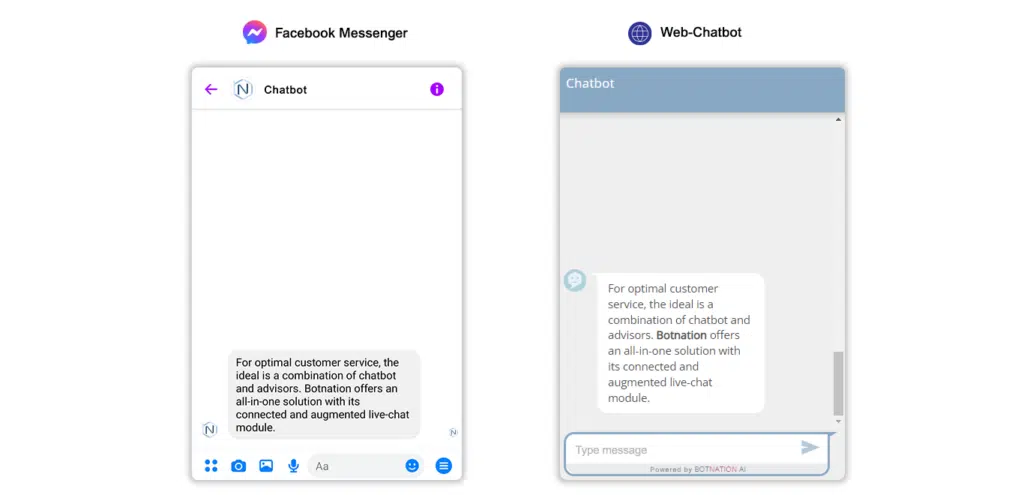
Easily add text that will be used by your chatbot.
1. Use
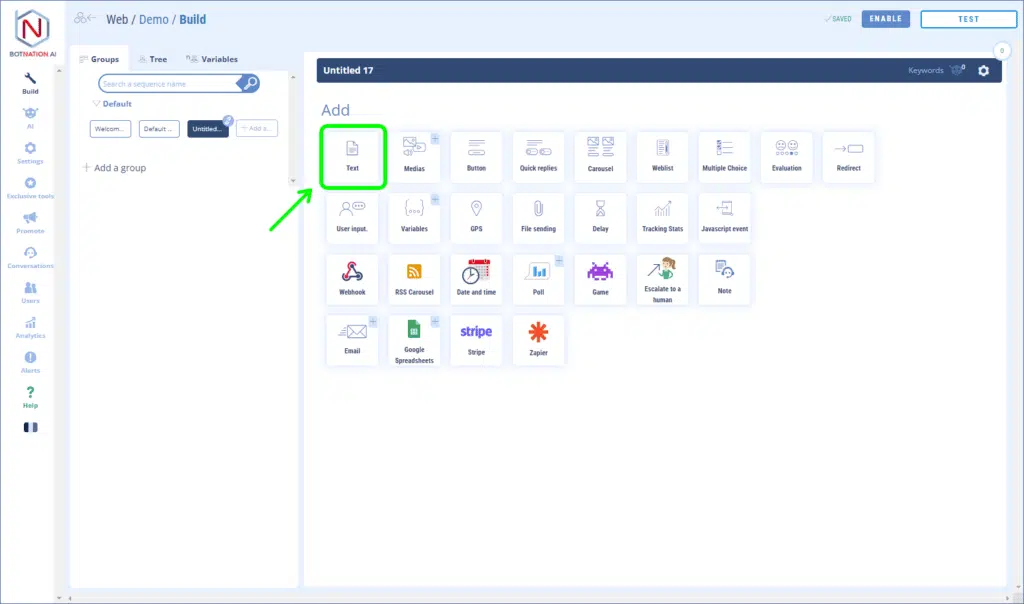
Among the construction features, click on “Text”.
Then type your text in the input field.
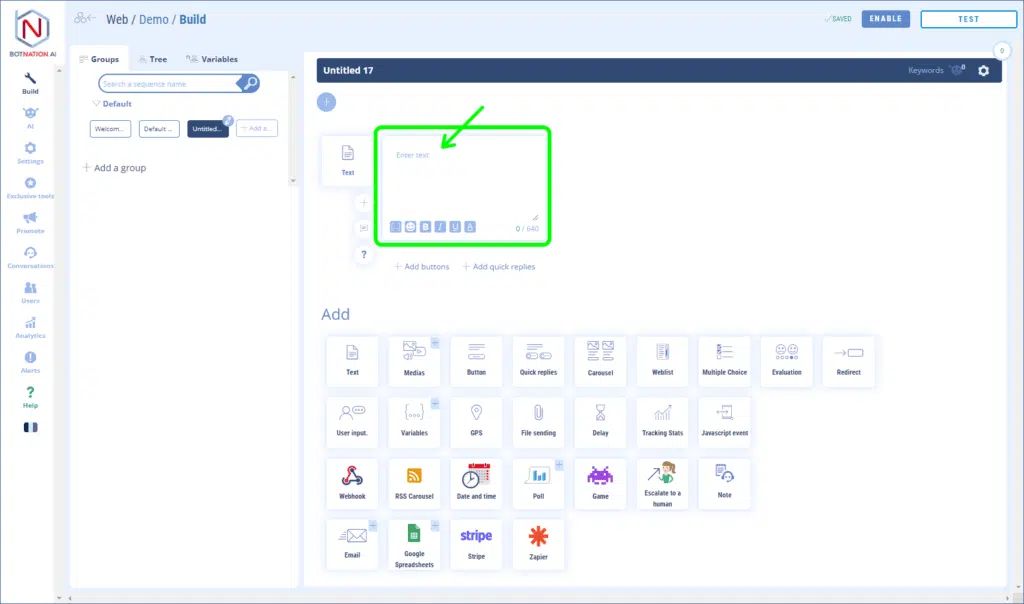
The Text Functionality is limited to 640 characters and you can see the count in the bottom right corner of the input field.
TIP
If your text exceeds the 640 character limit, simply break your text into multiple paragraphs and add them to your chatbot using multiple Text Features in a row.
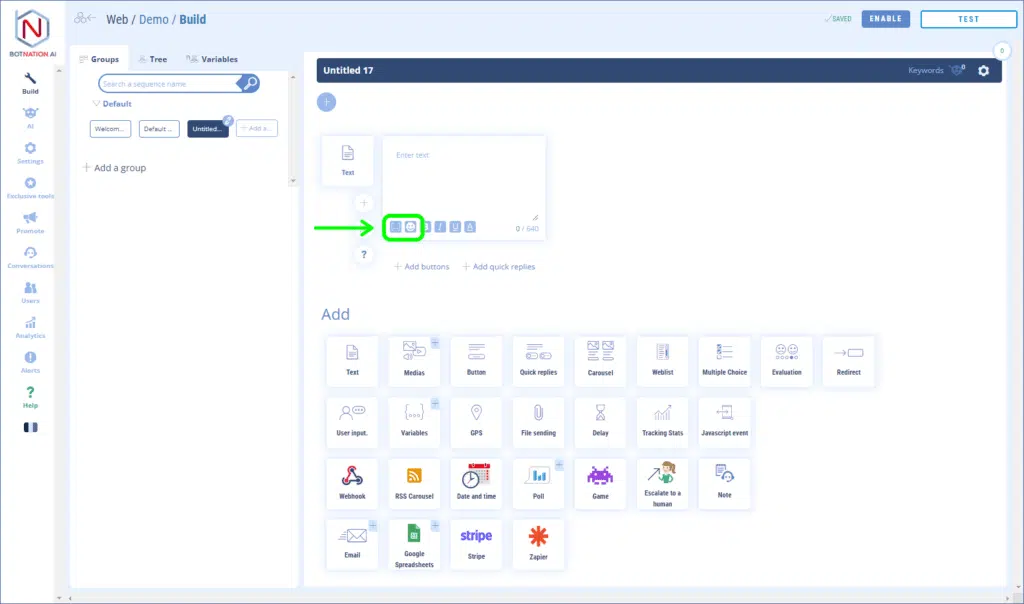
You can use the shortcuts, at the bottom of the input window, to add variables or emojis 😃 in the body of the text.
TO KNOW
For web chatbots, the Text Functionality allows formatting options such as bolding, coloring, italicizing or underlining text.
See the article: Putting text in color, bold, italic or underlined
2. Specific option
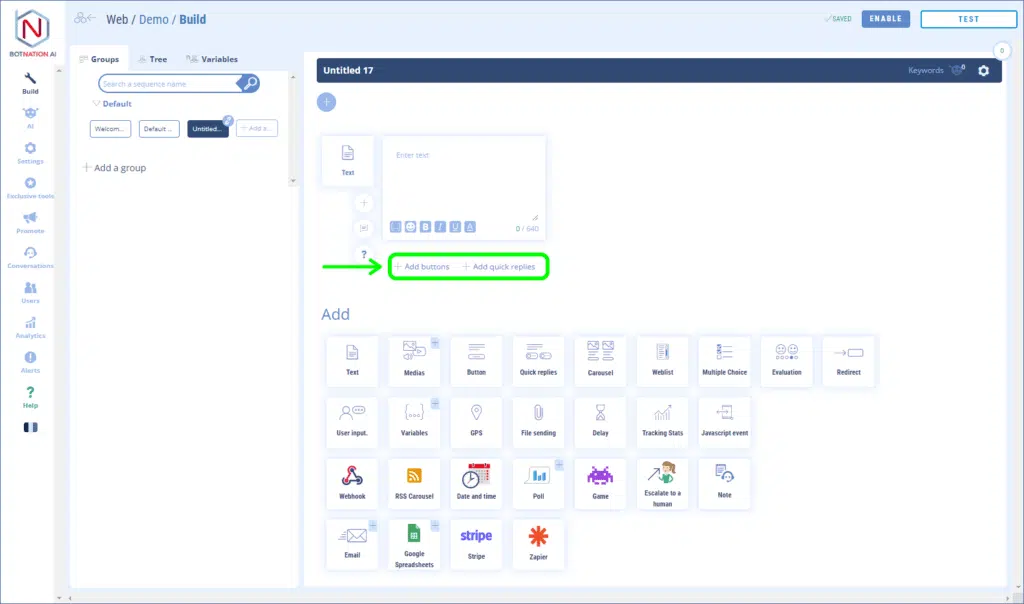
You can change the Text Functionality to Button Functionality or Quick Answer Functionality by clicking on the respective links below the input window.
See the articles: Add Buttons (Messenger), Add Buttons (Web Chatbot), Add Quick Replies (Messenger) and Add Quick Replies (Web Chatbot) to learn more