




A variable is a powerful tool to dynamically customize your chatbot and collect data.
1. What is a variable?
A variable is a text symbol, in the form {{Variable}}, which associates a value with this symbol. This value can be either a text or a number, such as an address, a vehicle model, a telephone number or a quantity.
This value is dynamic and can change as many times as you want depending on the use of your chatbot.
Moreover, each variable is unique to each user of your chatbot, so two users can use variables with the same symbol, {{le_choix}}, but whose content will be different because they have neither the same model of vehicle, nor the same phone number.
Variables have no lifespan: they are stored in Botnation’s databases for as long as your chatbot is active on the platform, with no limit on their number or use. A user who only consults your chatbot once a month will still find the variables that enable you to personalize its use.
2. System variables
As soon as the user initiates a conversation with the chatbot, the latter will retrieve any information available from the user and store it in the value of system variables.
To personalize the user’s Facebook Messenger conversation:
- First name: {{FIRSTNAME}}
- The name: {{LASTNAME}}
- Sex: {{GENDER}}
- Language: {{LANGUAGE}} (list of returned codes)
- The unique user ID: {{USER_ID}}
- The avatar (profile picture), if available: {{PROFILEPIC}}
- Optin on Facebook notifications (0 = no, 1 = yes): {{BN_OPTIN}}
After optin-Facebook Messenger:
- The user’s email {{BN_EMAIL}}
- The user’s phone number {{BN_PHONE_NUMBER}}
- GPS coordinates and addresses (see details on interface): {{GPS_LONG}} {{GPS_LAT}} {{GPS_CITY}} {{GPS_COUNTRY}}
For more advanced use :
- The URL of the last file sent: {{BN_URL_UPLOAD}}
- The length of the user’s last text entry: {{BN_USER_INPUT_LENGTH}}
- The identifier of the Facebook Messenger page contacted by the user: {{BN_MESSENGER_PAGE}}(find out more)
- {{NEW_LINE}}: generates a line break, useful for formatting an email using variables for example.
- {{NEW_SPLIT}} : Automatically divides a text into several different messages (bubbles). For long texts from an API webhook call, for example.
To “debug”… or understand the chatbot’s reasoning 🙂
- The user’s last text entry: {{BN_USER_INPUT}}
- The keyword or expression that triggered a sequence: {{BN_ACTIVE_EXPRESSION}}
- Current context: {{BN_ACTIVE_CONTEXT}}
- The HTTP status returned by your Webhook (remote server contacted). Only in “interpret response” mode: {{BN_WEBHOOK_STATUS}}
- The error message returned by your webhook or if the json transmitted in return is incorrect: {{BN_WEBHOOK_REASON}}
- {{BN_INFINITE_LOOP}} : Equals 1 if the user has already passed through one of your chatbot’s infinite loops.
Not all of this information is necessarily filled in, depending on the communication medium or the information entered by the user.
It’s also important to note that these system variables cannot be modified by the chatbot; they can only be consulted.
3. User variables
Unlike the previous variables, you have complete control over them. In addition to creating and viewing them, you can also modify them.
Elles sont personnelles à chaque utilisateur de votre chatbot.
You can create user variables from a “User input” element.
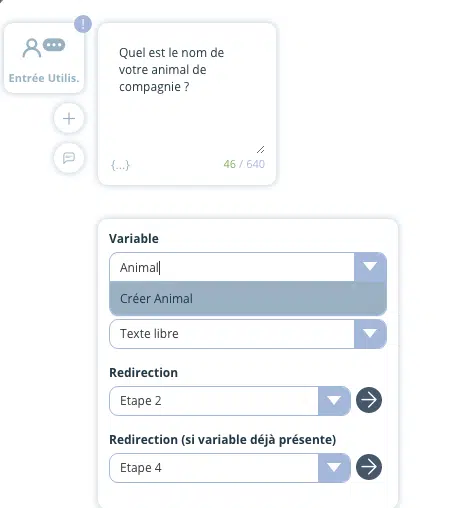
Let’s take a simple example:
Let’s create a chatbot for a car mechanic who needs to ask the user the make and model of the prospect’s vehicle.
So we’ll create a variable whose name is {{marque}} and whose value is the make of vehicle entered by the user. The same goes for the {{model}}. To retrieve the information, simply consult the value of the variable named {{marque}}.
This data can be used to display promotions dedicated solely to “Renault” brand vehicles, for example, using the conditions.
By automatically incrementing a {{passage}} variable at each conversation launch, you can also display a message or promotion dedicated to your chatbot’s most active users.
4. Global variables
Global variables can be found in your chatbot’s advanced settings.
Global variables are common to all users of your chatbot. You can store the customer service phone number or the price of an item on sale. In short, this information is identical for all users.
They are loaded by default (no setup is required in the scenario) and can be modified via the interface if there are changes to be made.
So if a price changes, it is changed for all users, without any action being required for each user.
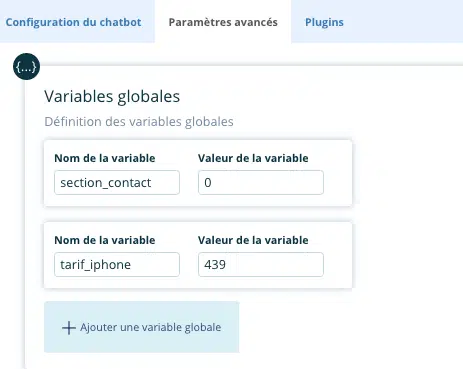
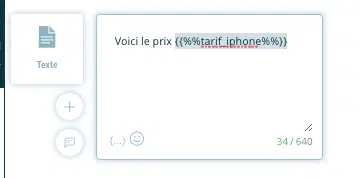
They are displayed as {{%%My_Global_Variable%%}} and are automatically available in variable lists in the interface.
5. Date and time variables
The “Date and time” function enables your users to easily enter a date and time via a visual calendar, so that they can inform your chatbot of an appointment, a birth date, a desired reservation period, etc…
In return, many variables of type {{CALENDAR_DAY}} are available, the complete list is available here.
Botnation also features system variables and functions that let you easily display, manipulate or calculate date and time.
The date variables are available here.
6. GPS-related variables
Functions are also available to easily calculate the distance between GPS coordinates in your chatbot. They are available here.
7. Variable handling
The main elements that manipulate user and global variables are :
- User input
- Condition
- Assign
- Increment
- Decrement
- Random
- Calculation
- Managing Breakage
- Concatenate
- Replace
To delete or reset a variable, simply assign it to an empty (nothing) or 0 sequence in your bot. At launch, for example, if you need to run regular tests with empty variables.
Finally, it’s possible to import or export the variables collected into an external CRM such as Salesforce, your own database, a simple Google Sheet or even via the “Webhook” element.
In this way, an order placed on your chatbot can be automatically fed back into your management system in real time.


