




Retrieve and insert data into Google Spreadsheet from your chatbot
Do you have data in a Google Sheets file that you’d like your chatbot to access? Would you like to save information about your users in a Google Sheets file? This article will help you do just that!
Botnation AI offers you 3 elements to integrate into your sequences to access your Google Sheets file:
- Backing up data to Google Sheets
- Retrieving data from Google Sheets
- Generate a carousel from your Google Sheets data
1. General information
To give your Chatbot access to your Google Sheets file, you need to follow a few rules:
- Your table must contain one and only one header line in the 1st row.
- The first column of your table must never be empty
- Do not use the value undefined in a cell. This keyword is reserved for formulas that do not return a result.
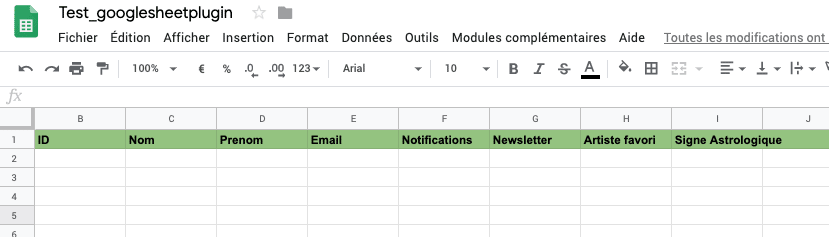
2. Configuration
First of all, you need to link your Google account to your chatbot. This takes place in the Plugins tab of your chatbot’s settings.
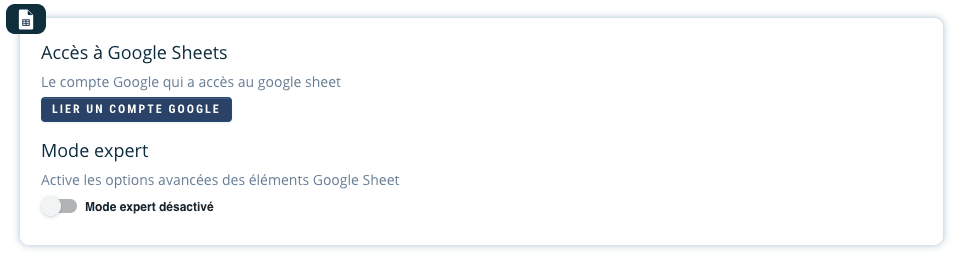
Click on the Link a Google Account button, then select the account that has access to your Google Sheets file from the page that appears.
Once the permissions have been accepted, you’re back on your Chatbot and the account you’ve just linked is now selected.
Expert mode
Expert mode enables you to activate advanced options for Google Sheets elements. Refer to the element section for more information.
3. Data backup
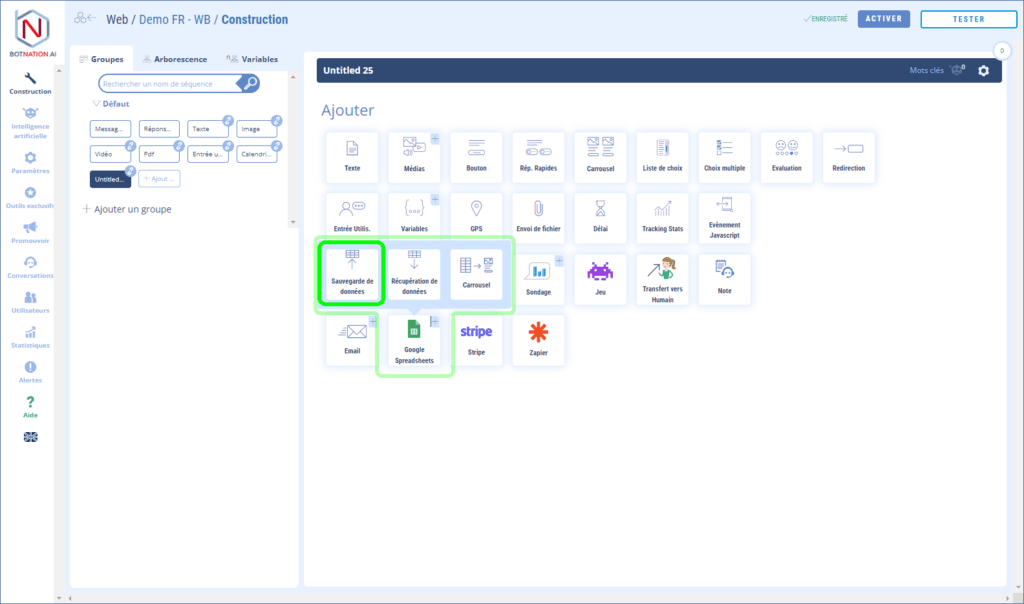
The Data backup feature lets you insert or update data in your Google Sheets.

Spreadsheet file: Select the Google Sheets file to be used.
Tab: Select the tab to be used
Force line creation (option): If checked, a new line will be created
Update lines corresponding to the following conditions: Select the conditions to identify the line(s) to be updated.
Create line if no line matches (option): If no row in your table matches the specified conditions, a new row will be created.
Update next columns: Specify the columns to be updated.
N.B.: Expert mode lets you specify multiple fields in the Update lines block , corresponding to the following conditions. This allows you to create AND / OR conditions.
4. Data retrieval
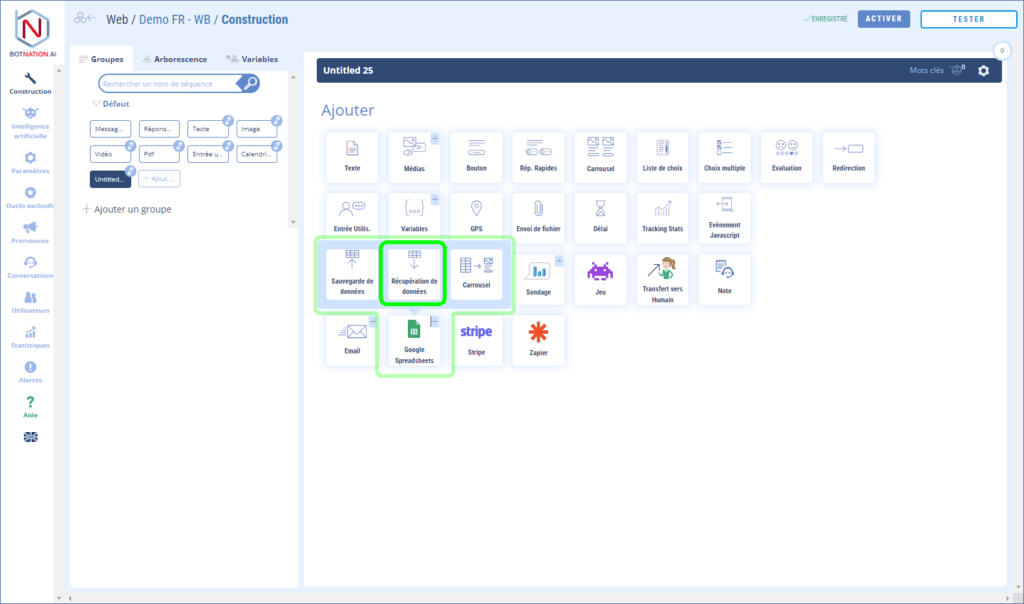
The Data Retrieval feature lets you update Chatbot variables with information from your Google Sheets.
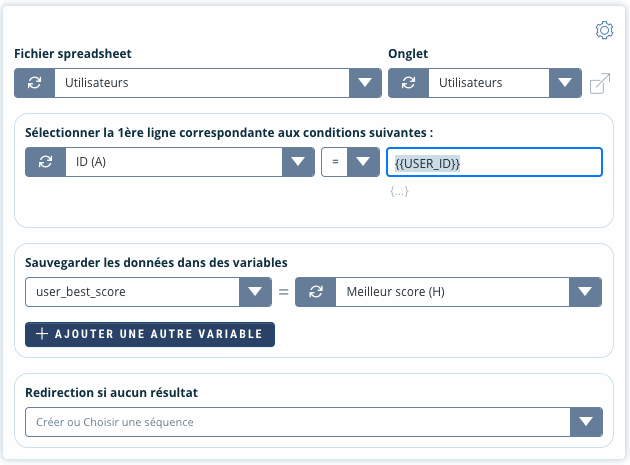
Spreadsheet file: Select the Google Sheets file to be used.
Tab: Select the tab to be used
Select the 1st line corresponding to the following conditions: Select the conditions to identify the line to be retrieved.
Save data in variables: Assign data from your Google Sheets to variables in your Chatbot.
Redirect if no result: Redirect your user if none of the rows in your table match the above conditions.
N.B.: Expert mode allows you to :
- specify multiple fields in the Select 1st line block , corresponding to the following conditions. This allows you to create AND / OR conditions.
- assign your variables more precisely. Column values can be retrieved via [[GOOGLE_SHEET_XXX] ] variables (where XXX corresponds to the column).
5. Carousel
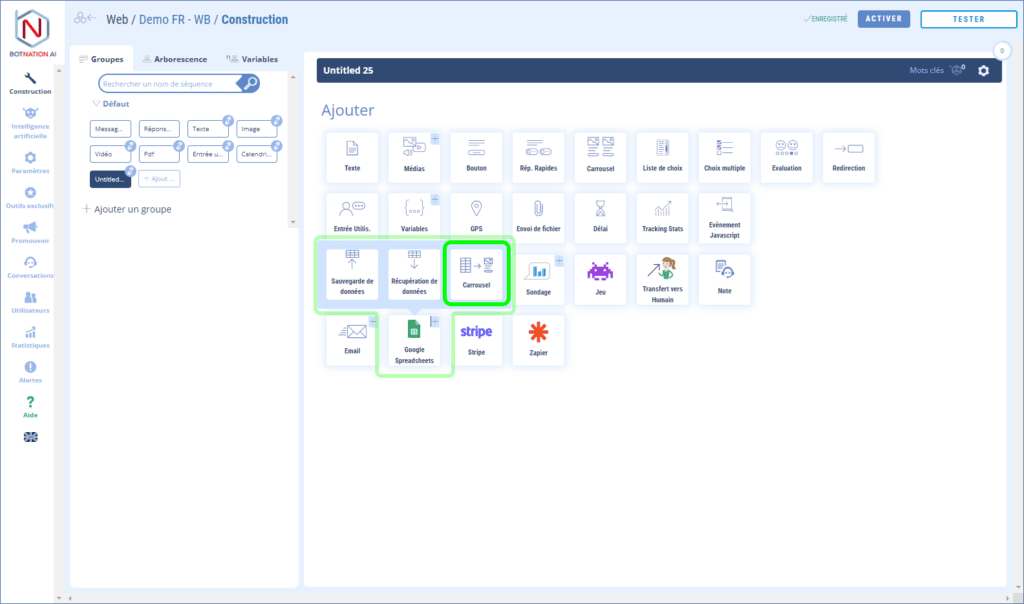
The Carousel feature lets you generate a carousel from information in your Google Sheets.

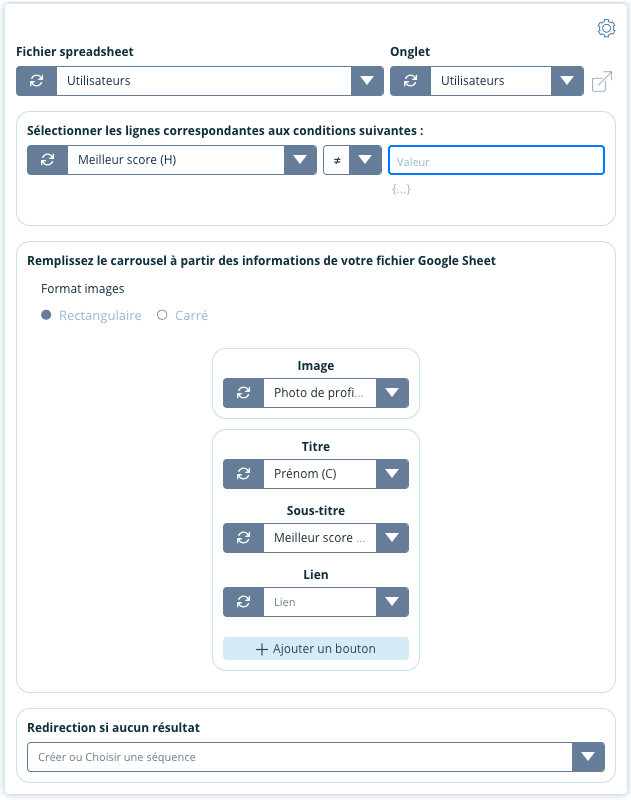
Spreadsheet file: Select the Google Sheets file to be used.
Tab: Select the tab to be used
Select lines corresponding to the following conditions: Select the conditions to identify the lines to be retrieved.
Fill the carousel with information from your Google Sheet file: Create your carousel pages using information from your Google Sheet.
Redirect if no result: Redirect your user if none of the rows in your table match the above conditions.
N.B.: Expert mode allows you to :
- specify multiple fields in the Select 1st line block , corresponding to the following conditions. This allows you to create AND / OR conditions.
- sort results by column in your Google Sheet
- limit the number of pages to be displayed in the carousel
- assign your variables more precisely. Column values can be retrieved via [[GOOGLE_SHEET_XXX] ] variables (where XXX corresponds to the column).
6. Frequently asked questions (FAQ)
The date saved in my Google Sheets file is not formatted or is incorrectly formatted.
Check the display format of your cell. Choose the Date format or delete the formatting.
How long does it take to write to Google Sheets?
This variable delay can take from 1 to a few seconds depending on Google’s “good mood”, which will depend on: the API load (number of operations in the processing queue), the replication of your data on their numerous servers, any limitations on the use of your Google account, etc…
Google Sheets isn’t a professional CRM or database solution designed to store large volumes of data very quickly – it’s an online spreadsheet. That’s why we recommend that you don’t rely too heavily on entries.
You can read data from a Google Sheets document, manipulate it in your bot, then write a result to Google Sheets, but we don’t recommend the opposite: writing data to Google Sheets and then immediately reading this data, as it may not yet be up to date at Google and could disrupt your chatbot’s behavior.
It’s better to perform these operations in 2 steps, with a human action in between in your bot for example, such as a click on a button, which will leave a few seconds for Google to write and update your data.
For more “dynamic” use, we recommend theBotnation API.
What does the “match” condition for line selection mean?
The “match” condition is used to enter a regular expression that will be tested on the column value. This can be used, for example, to test whether the value contains a substring of characters. For example, the “match” condition with the value “nation” will return true for cells containing the text “Bot created by Botnation” or “championship of nations“.
For further information on regular expressions, please refer to this documentation: https://developer.mozilla.org/fr/docs/Web/JavaScript/Reference/Objets_globaux/RegExp
7. Video
Here’s also a video we recommend you watch on integrating a Google Sheets document into your Botnation chatbot.


