



Capture data from your chatbot’s conversations
This feature allows you to ask the user a question, to which they can respond by typing their answer. The answer is stored in a variable.
1. Use
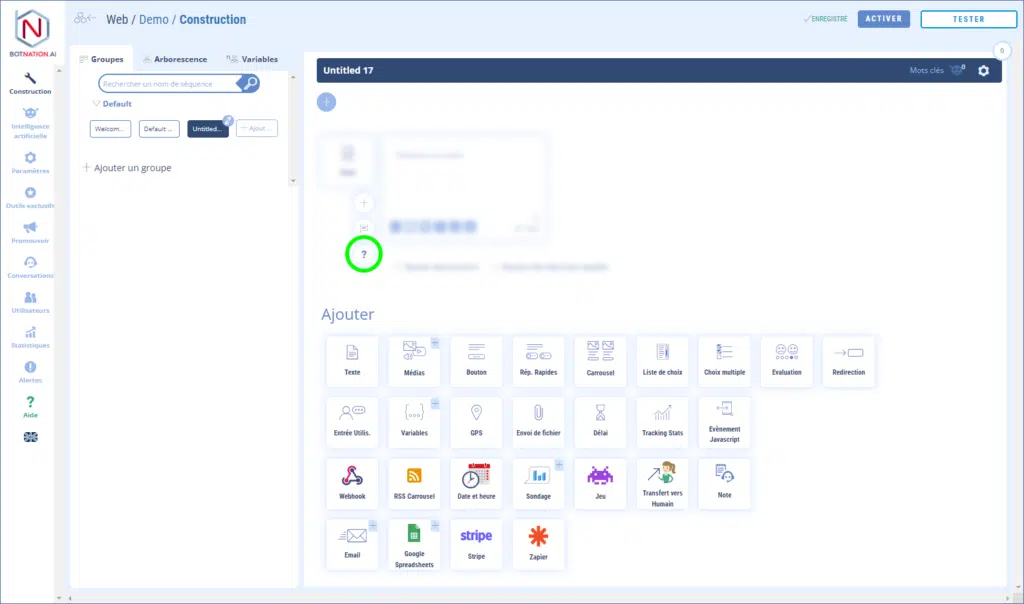
Among the construction functions, click on “User entry”.
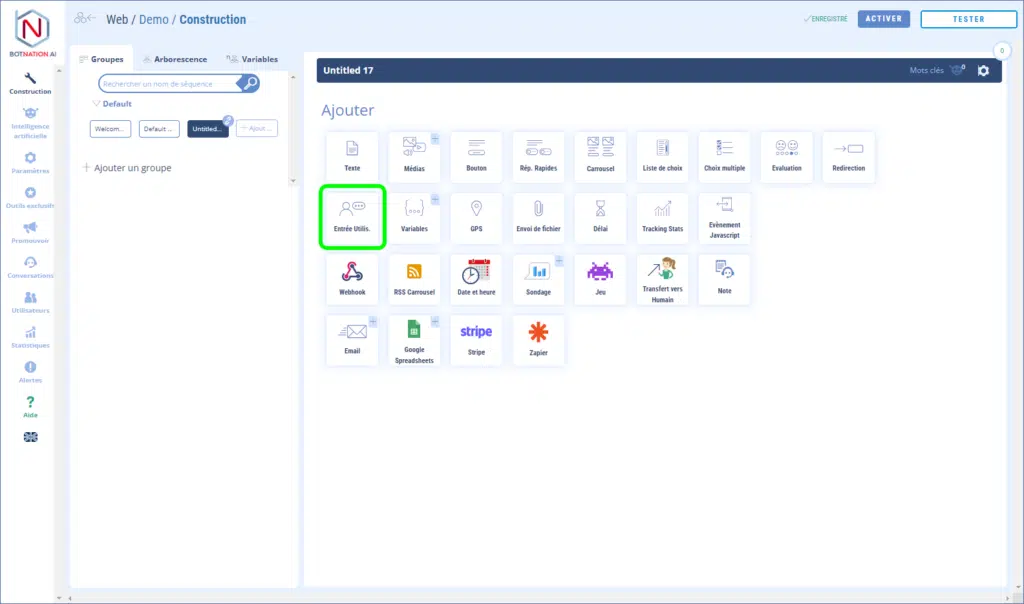
You can then configure this feature as follows:
- Enter the question you want to ask the user,
- Choose or create the variable in which the answer will be saved,
- Choose the variable type (Free text, Number detection or Email detection),
- Choose or create the sequence that will be launched once the user has responded,
- Choose or create the sequence that will be launched if the chatbot already has a value for this variable for this user,
- Add a cancel button to allow the user not to answer the question.
When you choose the variable type“Email detection” or“Number detection”, if the answer entered by the user doesn’t match the corresponding type, the chatbot considers it an error and will replay the sequence to ask the question again. See this article: How to deal with a wrongly entered email or number
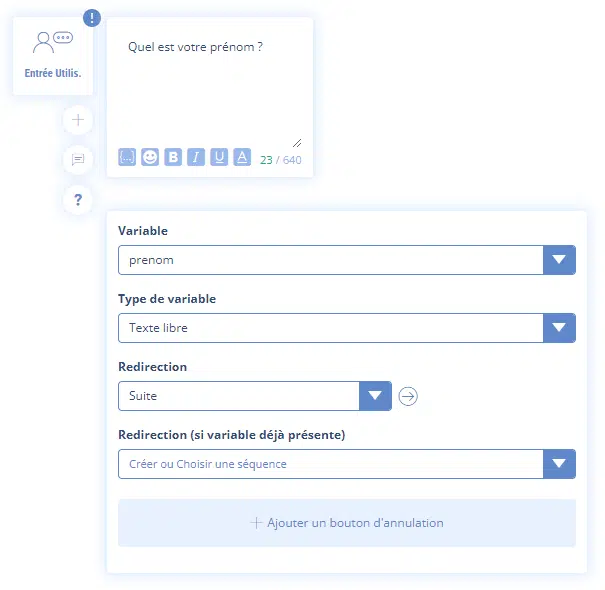
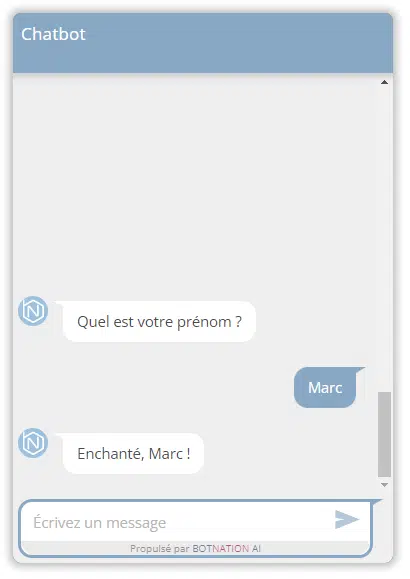
In the example above, the user is asked to enter his first name. This information will be saved in the “prenom” variable of “free text” type. Once the user has answered, he will be redirected to the “Next” sequence.
In the “Suite” sequence, we display a text in which we use the “first name” variable.
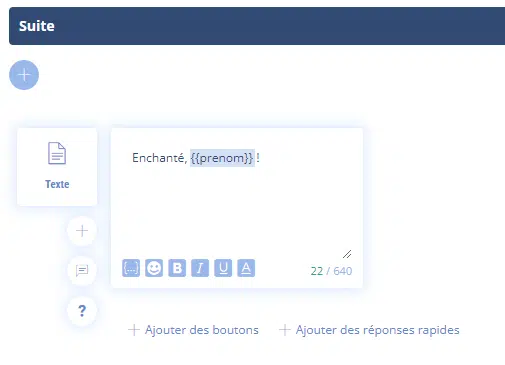
This gives in the chatbot:
ATTENTION
This feature can only be placed at the end of a sequence.
2. Options
A – By clicking on the “+” icon, you can rotate different versions of this functionality using A/B Testing.
See the article: A/B Testing and Machine Learning and the Webinar: A more efficient chatbot thanks to AB Testing.
B – You can leave your colleagues a comment about this feature by clicking on the icon (see below).
See article : Adding comments
C – Click on the “?” icon to open the online help for the item corresponding to this functionality.