



The functionality Assign function lets you create and modify a variable.
If the concept of a variable is totally abstract for you, I suggest you consult the following article before continuing: All about {{…}} variables.
1. Use
Among the construction functions, click on “Variables” then, in the menu that opens, click on “Assign”.
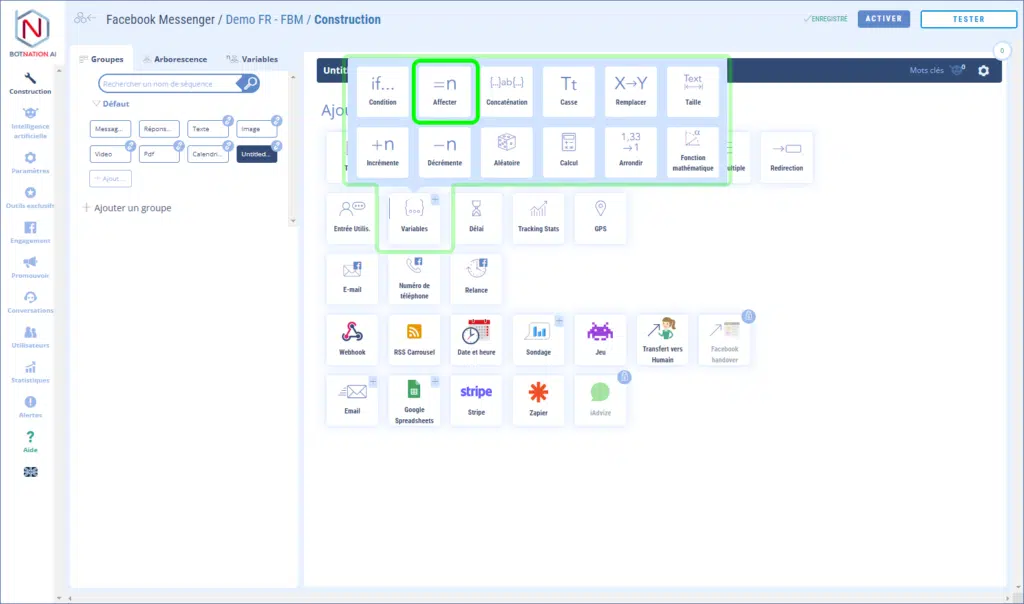
Let’s start by creating a function Assign :
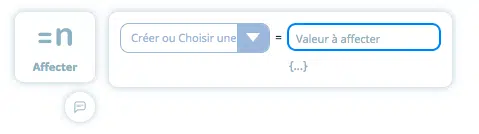
You have 2 choices:
- Select an existing variable from the drop-down list to modify it.
- Create a variable by inserting the name of the new variable.
All you have to do is insert the value to be assigned to the variable.
When the bot executes this function, it will be completely invisible to the user.
It is also possible to give the variable the value of another existing variable by clicking on the {…} icon.
We have created a variable with the name“myVariable” and the value“5”:
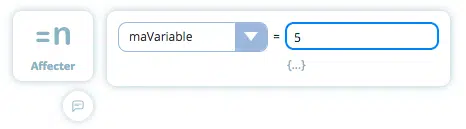
Let’s check that the operation works by asking the bot to display the value of the variable myVariable.
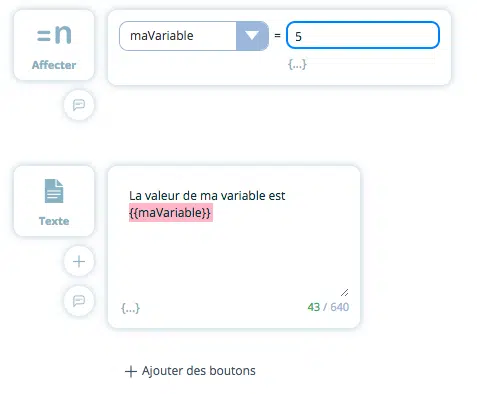
Let’s run the bot to see the result:

It’s confirmed: our “myVariable” variable has the value 5. We can now manipulate it from any sequence in our bot.
TIP
To reset to 0 a variable that has already been filled, simply enter the name of the variable and set the value to empty.
2. Options
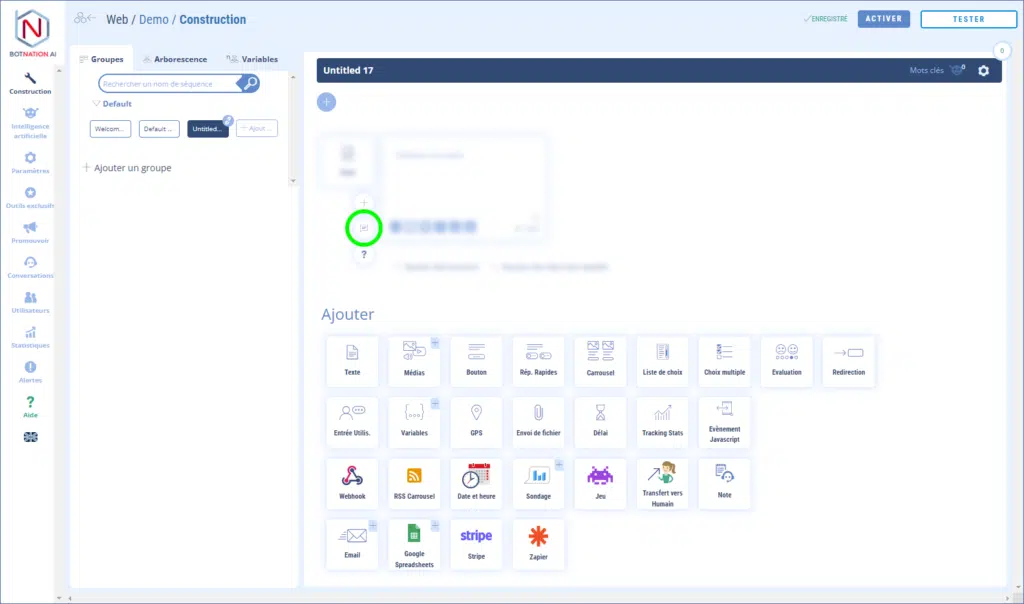
A – You can leave your colleagues a comment about this feature by clicking on the icon (see below).
See article : Adding comments
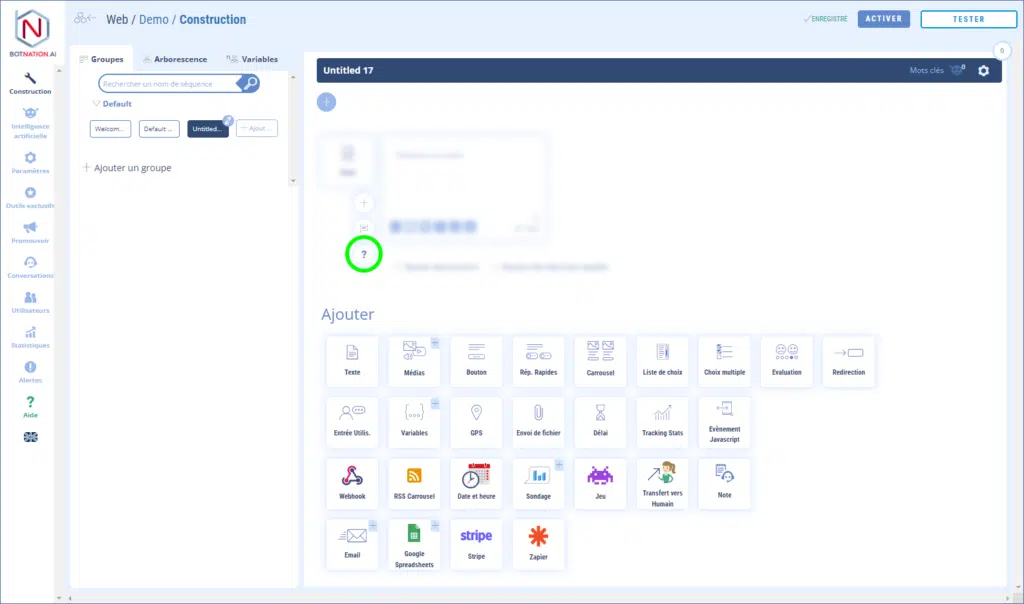
B – By clicking on the “?” icon, the online help will open on the article corresponding to this feature.
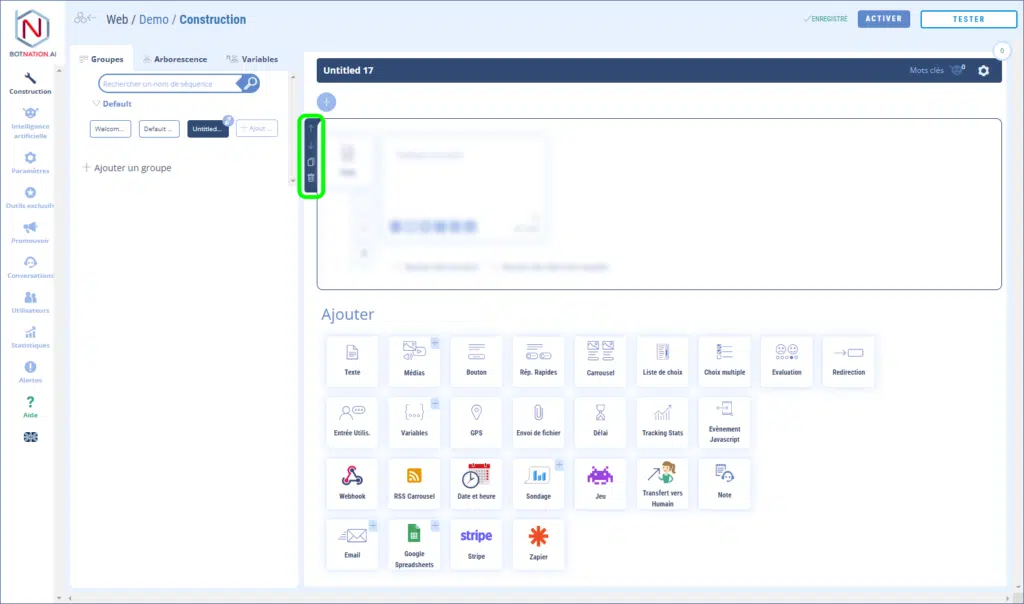
C – You can duplicate, delete or move this feature by using the icons that appear when you hover over it.