



“Create my first WhatsApp chatbot” is a phrase we’ve been hearing regularly in recent months.
Your WhatsApp Business account is connected to Botnation. You can now create your first bot. Here are the step-by-step instructions.
Where to start? 🤔
There are two options available for creating your WhatsApp chatbot on Botnation:
- Start with a template: Botnation provides ready-to-use templates that are ideal for getting started quickly
- Create a bot from scratch: Start with a blank page and build your conversation tree however you like
TIP
If this is your first WhatsApp bot, we recommend starting with a template. It will save you time and help you quickly understand how to build a bot on Botnation.
Option 1: Create a WhatsApp bot using a template
From your Botnation dashboard:
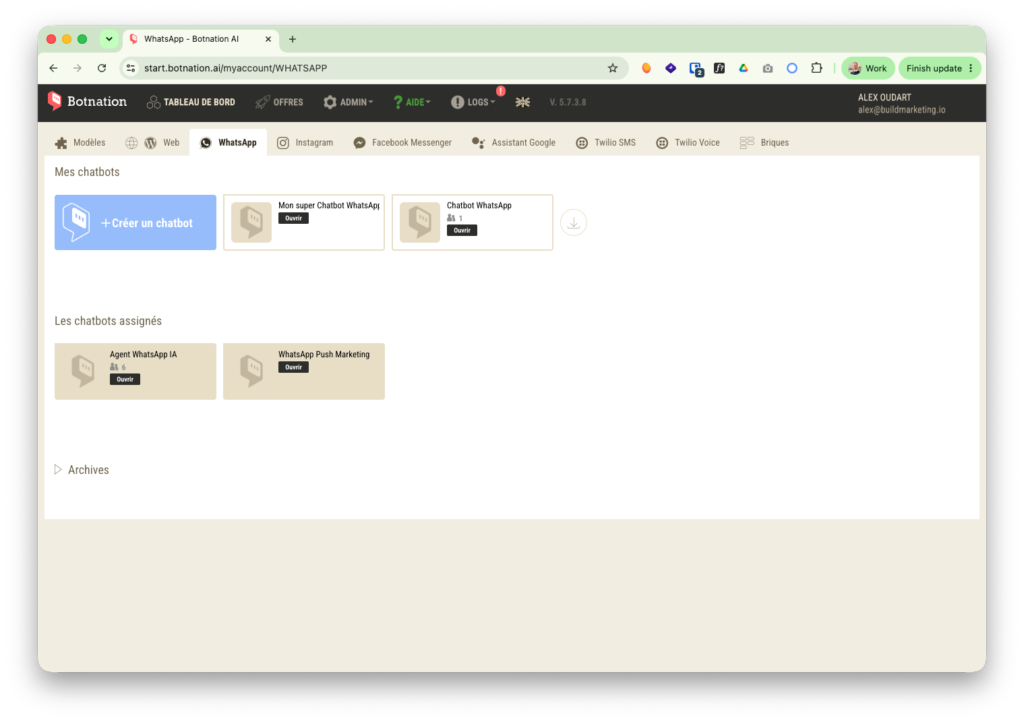
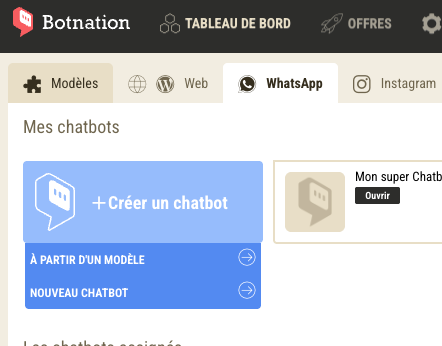
- Click “Create a New Chatbot”
- Select the WhatsApp channel
- Browse the available templates and click “Demo” to try out the one you’re interested in before installing it
- Click “Add” to import it into your account
The template is now available in your dashboard. When you open it, an interactive tutorial explains how and why the bot was built. You can then customize it however you like.
GOOD TO KNOW
The templates are free and fully customizable. They provide a good foundation for understanding how WhatsApp differs from other Botnation channels.
Option 2: Create a WhatsApp bot from scratch
From your Botnation dashboard:
- Click “Create a New Chatbot”
- Select the WhatsApp channel
- Select “Create an empty bot”
- Name your bot and confirm
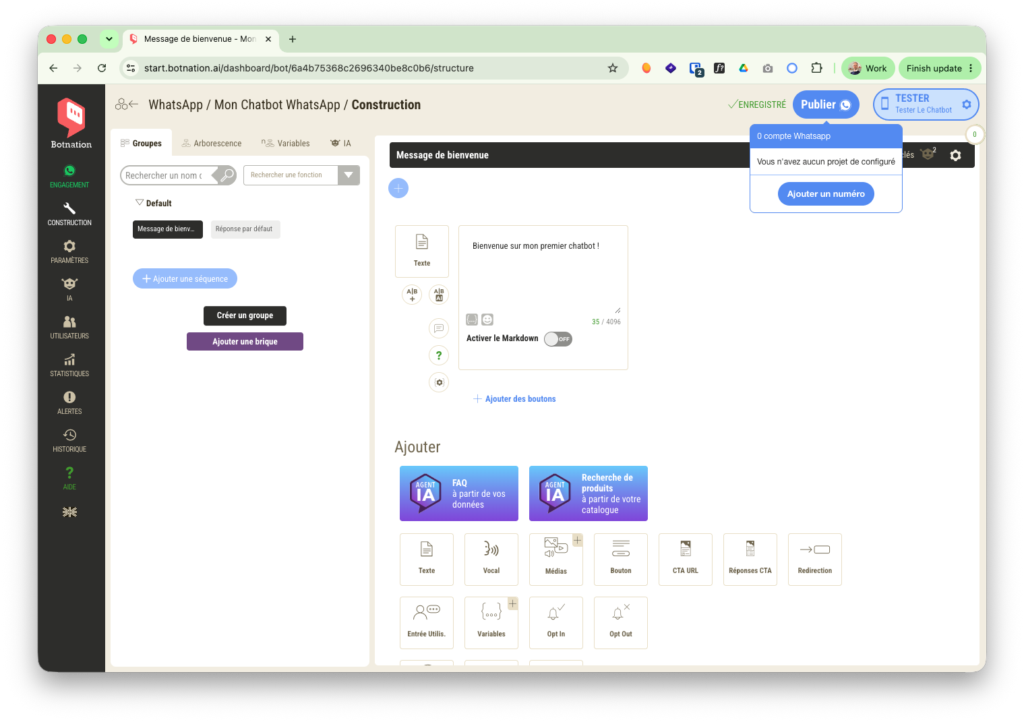
You are now accessing the Botnation editor.
Your bot starts with just one element: the welcome message, which will be the first message sent to the user when they start a conversation.
How does the WhatsApp editor work?
The Botnation editor works the same way as it does for other channels, with a few features specific to WhatsApp:
- Quick reply buttons are limited to 3 options on WhatsApp
- Drop-down lists allow for up to 10 options in a drop-down menu
- Supported media types include: images, videos, PDF files, and audio messages
- Message templates (proactive messages) must be approved by Meta before use
TIP
Be sure to test your bot regularly using the Botnation preview while you’re building it. WhatsApp has its own display rules that may differ from what you’re used to on the web or Messenger.
How do I connect my bot to my WhatsApp number?
Once you’ve created and configured your bot, you need to link it to your WhatsApp Business number:
- Go to Channels → WhatsApp in your bot’s settings
- Select the WhatsApp Business number that was previously connected to Botnation
- Confirm the association
Your bot is now active on WhatsApp. Any message received at this number will trigger the conversation you’ve set up.
GOOD TO KNOW
A WhatsApp number can be linked to only one bot at a time. To switch bots on a given number, you’ll first need to unlink the current bot.
Summary
- ✅ Bot created from a template or from scratch
- ✅ Content and conversation tree configured
- ✅ Bot linked to your WhatsApp Business number
- ✅ Test conducted using a real phone


