




Connecting your WhatsApp Business account to Botnation takes just a few steps—first on the Meta side, then on the Botnation side. Here’s the complete process.
Process Overview: Setting up your WhatsApp channel involves three main steps
- Step 1: Create or set up your Meta Business Manager account
- Step 2: Add and verify your WhatsApp Business number
- Step 3: Connect your WhatsApp account to Botnation
Step 1: Create your WhatsApp Business Manager account with Meta
If you don’t have a Meta Business Manager account yet, go to business.facebook.com and click “Create an Account.”
Please provide:
- Your company name
- Your first and last name
- Your work email address
Good to Know
If you already manage Meta ads or a Facebook Page, you probably already have a Business Manager. Check business.facebook.com before creating a new one.
Once you’ve created your account, you’ll need to verify your business with Meta. This step is required to access the WhatsApp Business API.
Go to Settings → Security Center and follow the instructions. Be sure to have a Kbis or any other official document proving the legal existence of your organization.
Tip
The Meta verification process can take anywhere from 24 hours to several business days. Make this your top priority, as it determines the next steps in the process.
Step 2: Add your WhatsApp Business number
Once your Business Manager has been verified, you must link a phone number dedicated to WhatsApp to it.
This issue must:
- You must not already be active on WhatsApp (personal or Business App)
- Be able to receive a text message or voice call for verification
- Being owned by or affiliated with your company
In your Business Manager, go to Settings → WhatsApp Accounts, then click Add.
Meta will send you a verification code via text message or voice call to this number. Enter it to confirm the link.
Tip
You can use a business landline number. In that case, select the voice call verification option.
Step 3: Connect your WhatsApp Business account to Botnation
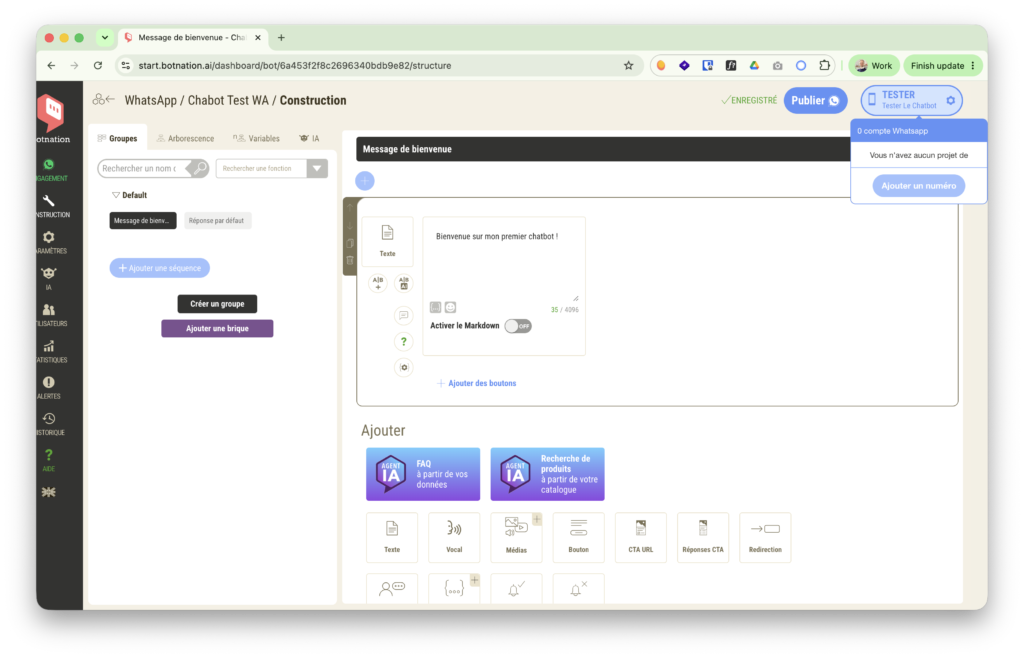
Once your number has been verified by Meta, go to your Botnation dashboard:
- Go to the Channels section of your bot
- Select WhatsApp
- Click “Connect via Meta”
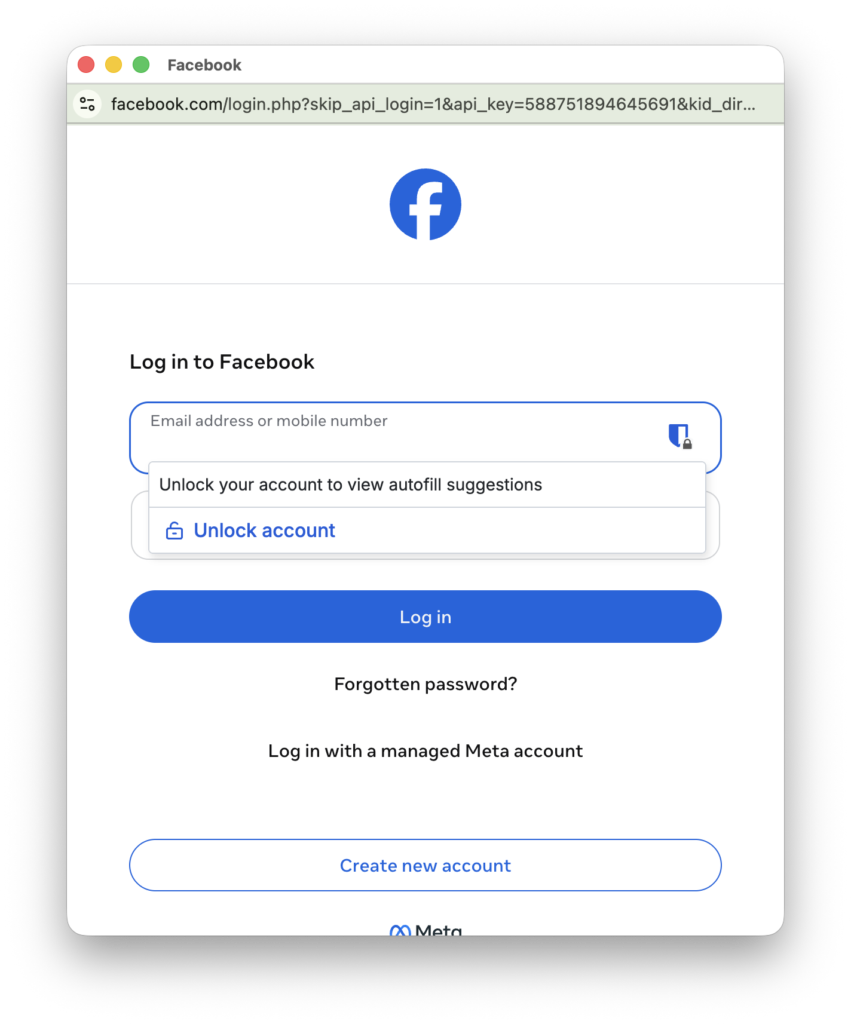
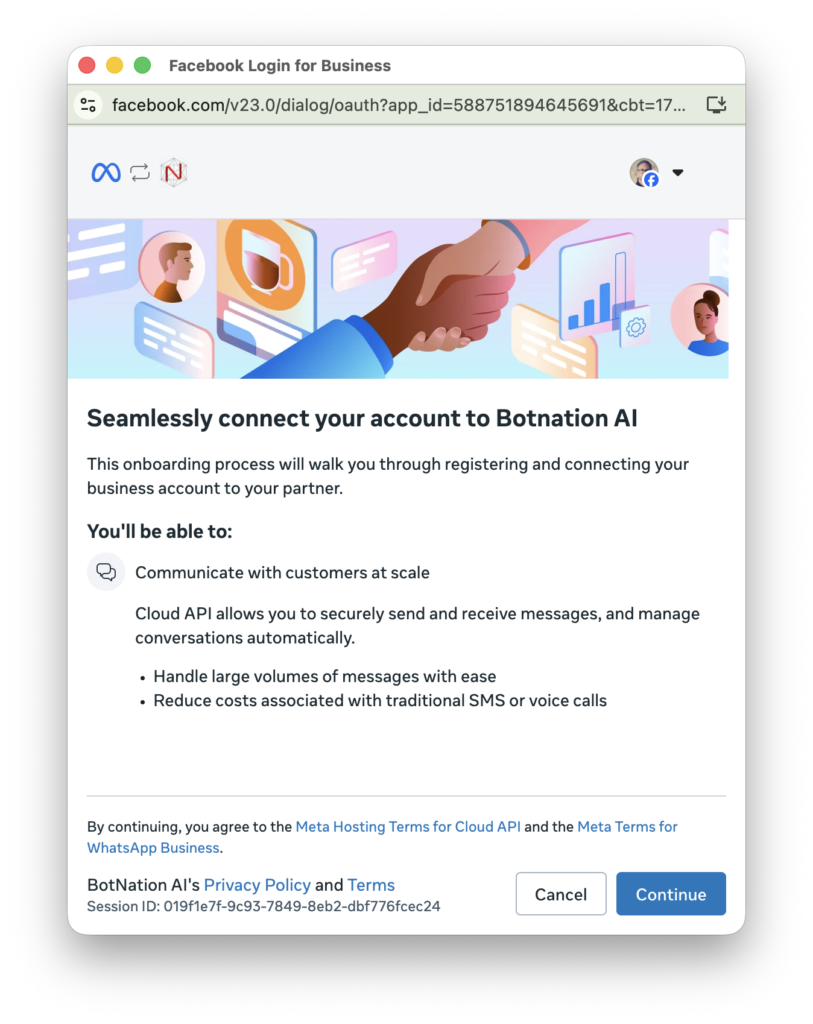
- Follow the OAuth login process: you’ll be redirected to Meta to authorize Botnation to access your WhatsApp Business account
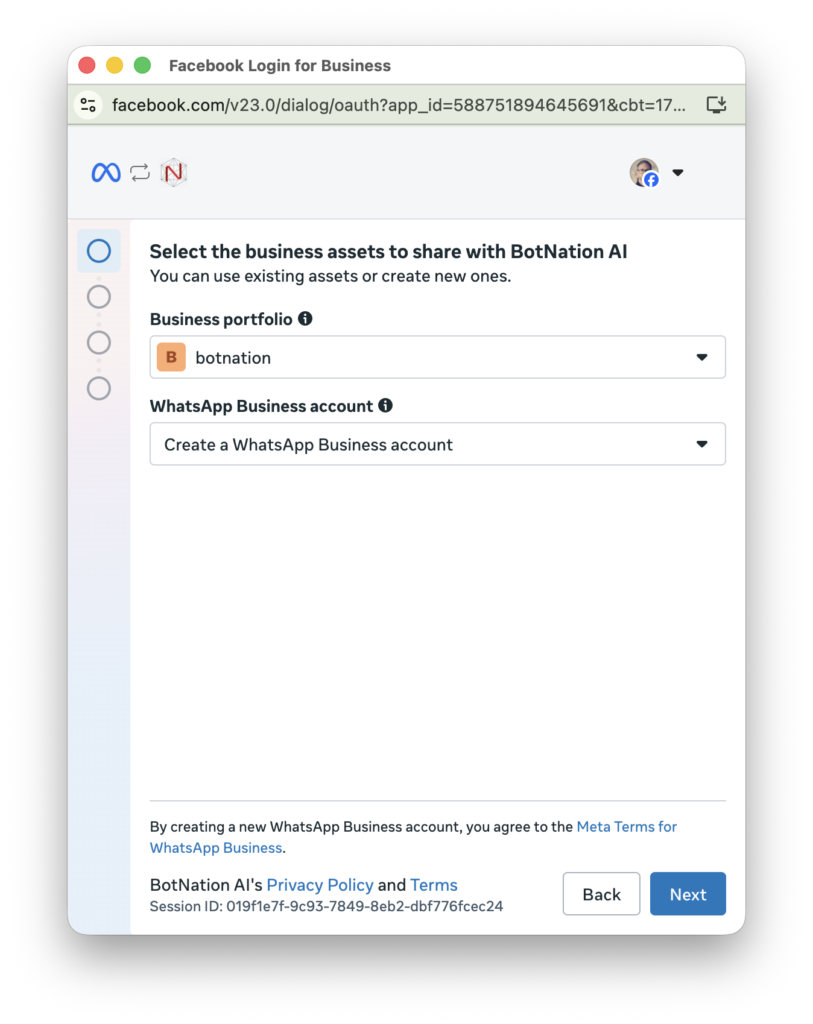
- Select the phone number you want to link to your bot
Your WhatsApp channel is now active. Your bot can start receiving and sending messages.
Good to Know
Each Botnation bot is associated with a WhatsApp number. If you want to deploy multiple bots on WhatsApp, you’ll need a different number for each one.
If you encounter a problem during verification
If your Meta verification is on hold or has been denied, here are the most common reasons:
- The document provided does not exactly match your company’s legal name
- Your Business Manager is too new and lacks activity history
- The submitted number is already associated with an active WhatsApp account
In these cases, please contact Meta Support directly through your Business Manager, or reach out to our team via the Botnation chat.
Summary
- Meta Business Manager account created and verified
- Associated and verified dedicated phone number
- OAuth connection between Botnation and your WhatsApp Business account established


